
Sales Invoice Template
Professional Sales Invoice Templates for your business - by Alex BejanishviliThere is probably a huge number of software and applications that can help you to deal with day-to-day invoicing tasks in your business, yet most of that software is either too expensive for small businesses to afford or simply not flexible enough, when it comes to customizing it to your specific business requirements. With that in mind, I have started to experiment in Microsoft® Excel® and created several sales invoice templates all of which you can download on this very page. The sales invoice templates are by far the best and indeed the most simple invoicing solution for any size business and in most cases can provide more comfort than any invoicing software.
The sales invoice spreadsheets, which you can download below on this page, include all information that you would expect from the regular software, such as shipping information, alternate shipping address, fields for entering the product code, fields for special notes and instructions and much more. I have also created many other corresponding spreadsheet templates, such as purchase order, price quote, packing slip and delivery note template, that continue to have the same look and feel as this sales invoice to make it easier for users to preserve that same brand look across all of their documents.
Sales Invoice Template
for Excel® 2003+, OpenOffice & Google Docs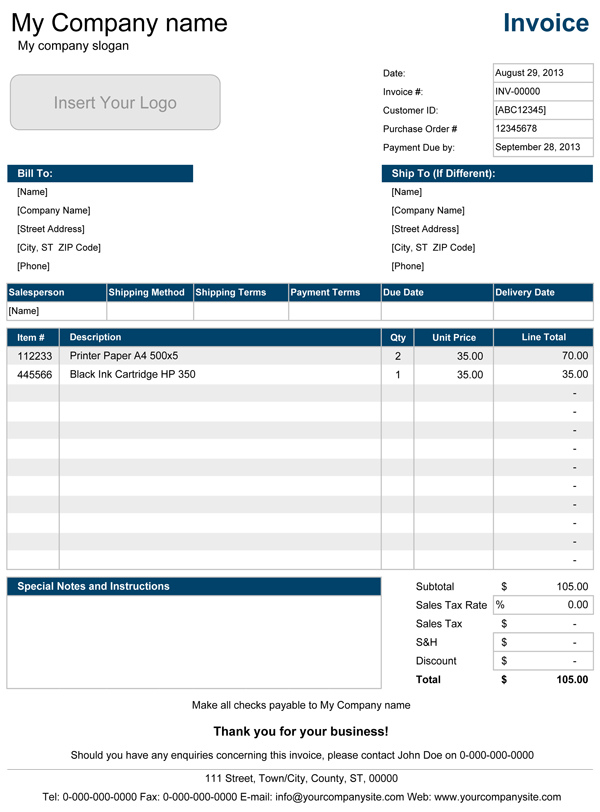
File: XLS
File: XLSX
File: OTS
File: SHEET
1.0.2
Microsoft Excel® 2003 or Higher (PC & Mac)
Not Used
Not Required
Alex Bejanishvili of Spreadsheet123.com
User License Agreement
Contact Us
Other Sales Invoice Templates
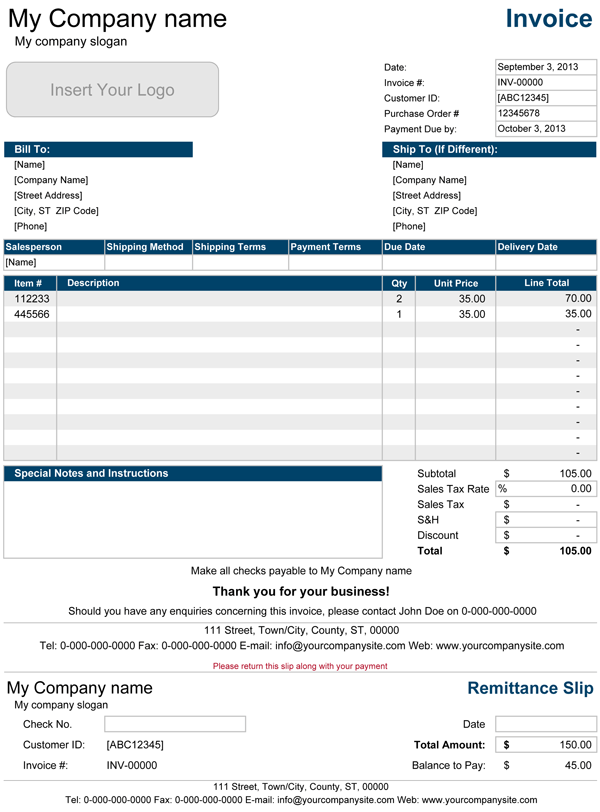
Sales Invoice with Remittance Slip
A modified version of the sales invoice that includes a remittance slip, which also performs all calculations automatically with inclusion of an outstanding balance, if payments are made partly.
File: XLS
File: XLSX
File: OTS
File: SHEET

Sales Invoice with Price List
A modified version of the sales invoice that includes a remittance slip, which also performs all calculations automatically with inclusion of an outstanding balance, if payments are made partly.
File: XLS
File: XLSX
File: OTS
File: SHEET
Description
I have tried to make the sales invoice template as simple to use as I could, so that it can be customized in a matter of minutes, to help you save a lot of time that you could use to concentrate on other important aspects of running your enterprise. After downloading the spreadsheet, you will find a settings tab, which will let you to do most of the customizations, like setting your company name, slogan and address, select the currency symbol, specific to your country of residence, right from within the drop-down list or even select the color of the invoice template from four pre-set colors. Some of the settings are optional, such as company name for instance, you would still need to enter the name in the field, but at the same time you can simply disable it, so that the company name will simply disappear from your invoice. Some users may prefer to insert their company logo, which has all necessary information that they want to have on their invoices, therefore, they have an option to disable it completely. All settings are template-wide, which means that when you make changes to the settings, the settings are then effectively carried over to all four invoice templates inside the spreadsheet.
Sales invoice spreadsheet contains four individual templates, giving you more options to use all four or use one that you like most. Some of the templates are in the ink friendly format.
Invoice Manager Pro
- Automate process of creating invoices
- Track your invoices and payments
- Multiple Invoice templates
- Customer and Product Database
- Country specific customization ability
- Ability to add custom invoice templates
for 30 days


