Support and FAQ
Hear you can find an answer to the most frequently asked questions about a template you've downloaded from Spreadsheet123. Unless the answer to the question that bothers you can't be found below or on the original download page, please Contact Us.
- Template Download
- Problem Downloading a Purchased Template
- Cannot Find Downloaded File
- How to open a .ZIP file?
- File opens as "Read Only"
- Changes that I've made can't be saved - General Formatting Questions
- Can't find my .xlt Template File
- Changing the $ Currency Symbol
- How to Fix Cells that Display "#######".
- Adding Rows to Templates - Printing Questions
- Why is only a small section of my Excel spreadsheet printing?
- Redefining the Print Area
- How do I print a small section of a large spreadsheet
- How do I print my Excel spreadsheet on one page?
- Displaying Excel Functions and Formulas for Printing
- Excel - How to Print the Ampersand (&) Character
Problem Downloading a Purchased Template
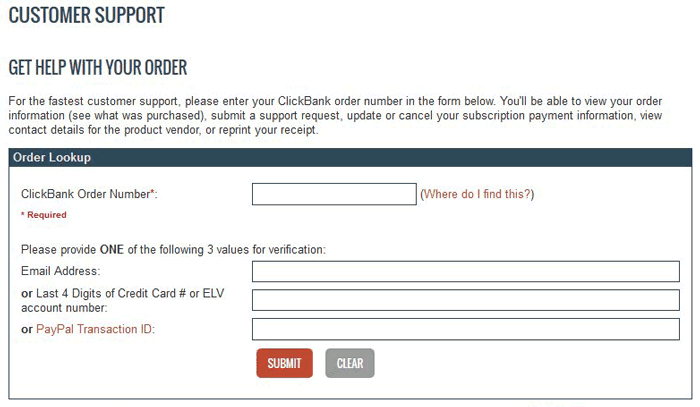
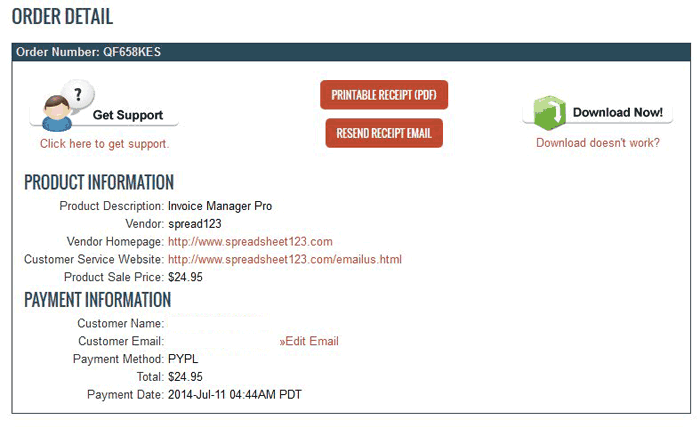
If for any reason you have experienced a problem with download of a purchased template after making a payment through PayPal, please Contact Us. Please include your transaction details such as PayPal Transaction ID, PayPal registered e-mail address or receipt number and exact name of the template purchased and we will send you a copy.
NOTE: We will only send copy of the purchased templates to the e-mail that was used to purchase the template (a.e. PayPal Registered email address).
Cannot Find Downloaded File
If you can't find file you have downloaded we recommend using windows search tool to search for your file by going to the "START" menu at the bottom left of your screen and click "Search for files and folders".
How to open a .ZIP file?
Spreadsheet123 uses .zip archiving method at least for two main reasons.
One is that Zipping file provides a great way to for creating a compressed version that reduces the size of a single file considerably and reduces download time.
Reason two is for archiving multiple files into a single file. The file that has .zip extension is known as a Zip.
If you are a Windows user, most likely your computer already has a zip utility, which is free with Windows package, follow these steps to unzip a file, right-click the file and then click Extract All on the shortcut menu, alternatively by double-clicking on the file you'll call up the window that looks like a standard directory where you can see the content of your archive and drag and drop a single file or entire content to your desktop or into other folder. For more detailed information please read how to Zip or unzip a file for windows or Open a Zip file for both Windows and Mac
File opens as "Read Only"
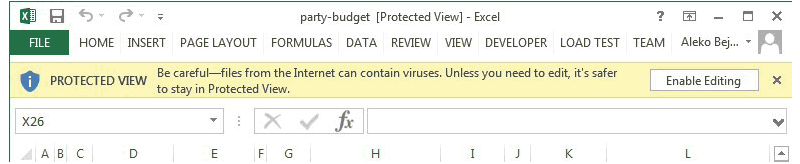
If the file opens as a Read Only usually means that the file wasn't saved when prompted to save it but was opened instead, which also means that any changes made to the file will not be saved unless you save it first by clicking File in the menu and then Save As or Ctrl + S on your keyboard.
Another reason for this could also be that you've opened file directly from a zip archive without extracting it first. In this case changes made to you file will not be saved and you may loose all work you've done. To avoid this first you'd need to extract files from .zip and open your file then.
Changes that I've made can't be saved
Can't find my .xlt Template File
The Microsoft Excel® template (.xlt file) is usually saved in
C:\Documents and Settings\[your user]\Application Data\Microsoft\Templates
and accessible by going to the File > New on the menu or Ctrl + N for Excel 2003 when for Excel 2007 or 2010 by clicking an Office Button and then New.
Changing the $ Currency Symbol
To change a currency symbol in any cell you will need to do the following:
- Select the cells that you want to change.
- Right click on the selected cells will open up a contextual menu.
- Scroll down to Format Cell and click on it, this will open a small Format Dialog box or use a shortcut Ctrl+1.
- In Number tab Category scroll down to Currency and choose the currency symbol from the drop down menu.
- Click Ok after you have finished
How to Fix Cells that Display "#######".
If cell displays "######", it usually means that the content of the cell is wider than the width of a column. Simply decrease the font size or increase the width a column to fix this.
Adding Rows to Templates
To insert a new row, you'll need to select a row above the last one (applicable to some templates where indicated), for instance if the last row is 43, you will then need to select row 42 by clicking on the number row number indicator, then right click on the selection and scroll down to "Insert", this will add a new row. You can do the same to add multiple rows by selecting multiple rows instead of one. Now to apply same format to all newly inserted rows, you need to select those rows with inclusion of the rows that is above inserted and press Ctrl + D simultaneously, these will copy same formatting of the additional row that you've selected above inserted rows into your newly inserted section. Formula that calculates total in most of Spreadsheet123's spreadsheets (with few exceptions) is set in a way to expand when new rows are inserted, but we strongly advise to check formulas to make sure it still works correctly. At last and this is probably most important, before you perform any changes, make a backup copy of your spreadsheet.
Why is only a small section of my Excel spreadsheet printing?
The most likely reason for this is that there has been a print area set previously. To fix this, go to Excel's "File" menu, select "Print Area" then "Clear Print Area". This should fix the problem - your spreadsheet should now print out in its entirety.
How do I print a small section of a large spreadsheet?
Fortunately, there is a simple solution to this problem. Firstly select the entire area of the spreadsheet that you need to print. Then go to Excel's "File" menu, select "Print Area" then "Set Print Area". If you have done this correctly you should see a dotted line around the area you have chosen to print. When you print the spreadsheet, only the print area you have set will be printed. To remove the print area go to Excel's "File" menu, select "Print Area" then select "Clear Print Area". This should work for all versions of Excel from 97 onwards.
How do I print my Excel spreadsheet on one page?
In the "File" menu, select "Page Setup" (this can also be done from print preview - click the "Setup" button). In the page setup there are four tabs - select the "Page" tab. Under "scaling" you'll see the option to fit to one page - click the radio next to the phrase - it defaults to one page tall by one page wide. If you have a spreadsheet that is too wide, but the length is fine, you can make the spreadsheet one page wide and change the "tall" option to however long the document is (eg 6 pages). This will make the width of the spreadsheet fit to one page without affecting the length of the document
Displaying Excel Functions and Formulas for Printing
Excel formulas by default don't get printed out. What you usually see is the result of the Excel formula. So what happens when you need to have the formulas print out and not the results?
It is actually possible to do so. There is a way to toggle the formulas in excel. Go to the "Tools" menu and select "Options". Click on the "View" tab and you'll see a "Window Options" section towards the bottom. Check the box next to "Formulas".
When you click "Okay" you will notice two things:
- You now see the formulas in the cells, rather than the results
- The columns are now exactly twice as wide as they were before.
Don't worry - when you change back to displaying the formula's results (by unchecking the "Formulas" box), your columns will return to their normal size.
Excel - How to Print the Ampersand (&) Character
Excel uses the ampersand character (&) as its escape character. So when Excel sees the & it expects an instruction to follow and so doesn't print the &.
Fortunately, there's a simple solution, if Excel won't print the &, simply use two together:
&&
Excel will then print the second ampersand character.