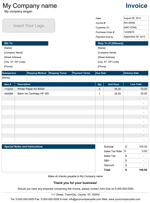
Service Invoice Template
Professional Service Invoice Templates for your business - by Alex BejanishviliBusiness organizations and even more often, business individuals, who provide service to their clients rather than physical goods, often looking for easy to use and less expensive or free alternative to some sophisticated billing software. The service invoice template, which we have created specifically as our answer to most, if not all questions that small business organizations are facing daily, in possibly the most sufficient and less complicated way. Spreadsheet123's service invoice, is ready to use spreadsheet, which requires minimal customization and can help to get you going in less time that you'll need to make a coffee.
Below on this page, you will find several service invoices, all designed and modified specifically to meet requirements of businesses like consulting agencies, solicitors and law firms, freelancing agencies, accountants and other organizations in similar field. Of course, if your company is less service oriented and oriented more towards sale and shipment of the physical goods, then you might want to download our service invoice template instead, that helps to do just that, with many different options related to that particular field of business.
Service Invoice Template
for Excel® 2003+, OpenOffice & Google Docs
File: XLS
File: XLSX
File: OTS
File: SHEET
1.0.3
Microsoft Excel® 2003 or Higher (PC & Mac)
Not Used
Not Required
Alex Bejanishvili of Spreadsheet123.com
User License Agreement
Contact Us
Other Service Invoice Templates

Service Invoice with Hourly Rate
Modification of the original service invoice template, which contains fields for entering hours and hourly rate. This version is great for every organization that exercises so called charge per hour service, i.e. plumbing services, electrical services, solicitor service. This particular version is also good for use as timesheet invoice to invoice anyone, who is using the service you provide on more permanent basis.
File: XLS
File: XLSX
File: OTS

Service Invoice with Hourly Rate and Optional Tax
This version is very much identical to the one above, except that, it also contains one additional column, which helps to expressly specify all items for which the sales tax should be calculated, leaving those items that should be excluded.
File: XLS
File: XLSX
File: OTS

Service Invoice with Customer List
Another modification of the original service invoice template, which also contains a list of customers, that lets you to create and maintain the list of your customers and then simply call each customer details by only entering their ID into Customer ID field of the invoice. The "Bill to" fields of the invoice will get updated automatically, when customer ID is entered, so you would not have to enter the details there manually ever again. This version is great, when working with many frequent clients, it helps to keep all information in one place.
File: XLS
File: XLSX
File: OTS
Description
Before going ahead with the details of how this template works, it is useful to have in mind that the general design is the same as on other invoice templates that you can download from Spreadsheet123. Once you learn how to use one, all other ones become really easy to familiarize with.
What about this template then?
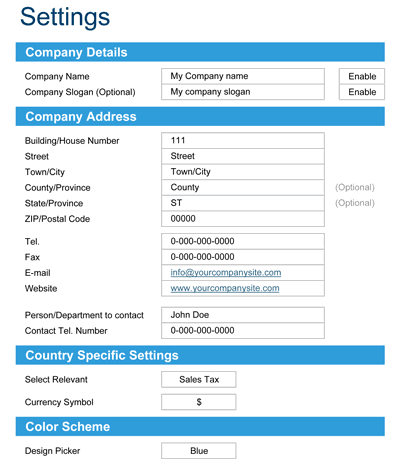
OK. First things first. Once you download either of our invoices, you should look for the settings tab. This is where you can change most of the functionalities of the template. For example, you can show or hide your company name or slogan, enter your company details or select the currency symbol relevant to your country out of 4 preset symbols. You can even change the color scheme of your invoice template. Some of the settings are optional and some are not, but the important part is that all four invoice templates within the spreadsheet will reflect the changes you select on the settings tab.
Of course, you can also insert your own logo. Just remember to delete the place-holder image which we have inserted into the templates first. You can then upload your own logo in the usual way that you do for the particular version of Microsoft® Excel® that you have in your computer.
Printing and Sending your invoices.
The best way to deal with this task is to convert your invoices to PDF, which you could then send via email to your clients rather than sending paper copies by postal service. If you are using latest version of Microsoft® Excel®, which has built in PDF converter, then you do not need any additional software. To create PDFs in earlier versions of Microsoft® Excel you will however need to have a software like Adobe Acrobat® or similar.
Invoice Manager Pro
- Automate process of creating invoices
- Track your invoices and payments
- Multiple Invoice templates
- Customer and Product Database
- Country specific customization ability
- Ability to add custom invoice templates
for 30 days